
How to Check Word Count in Microsoft Word (and Why It Matters)
How to Check Word Count in Microsoft Word (and Why It Matters)
Meeting word count is more than just a technical or “bothersome” requirement; it is intended to show discipline and clarity, while also helping the writer consciously or subconsciously develop a set of skills useful and appreciated in academic settings. When authors stay within the assigned range and can fully elaborate on their research topic, it reflects their ability to communicate ideas efficiently and prioritize information. Consequently, it helps develop critical thinking; having a set limit pushes the writer to provide enough evidence to support their point without unnecessary digressions.
Staying within the word limit requires precision, challenging authors to eliminate repetition, vague language, and unnecessary details, thereby promoting clarity and cohesion. Falling significantly short often suggests incomplete research, underdeveloped ideas, or a poor understanding of the topic, whereas going significantly over may indicate a lack of focus, inclusion of irrelevant material, or inadequate editing skills. Learning to express complex ideas within a defined length trains writers to better organize their thoughts and explain them effectively, improving communication proficiency.
Another aspect of word counting is that it reflects professionalism and respect for academic values. Instructors design their assignments with a set of learning goals in mind. Following those guidelines, word count included, demonstrates the capability to meet expectations—a valuable skill not only in academic settings but also in professional life.
In sum, respecting the word count is not about filling space with unnecessary terms just to “meet the quota,” nor is it about cutting ideas or arguments arbitrarily. It is about depth, precision, and effective communication within established parameters, key aspects of academic and professional writing.
Word Count in Microsoft Word
There are three ways to check your word count in Microsoft Word.
From the Status Bar
Open your document.
Look at the bottom of the window (which is the status bar). It will show you the number of pages, the language, and other information.
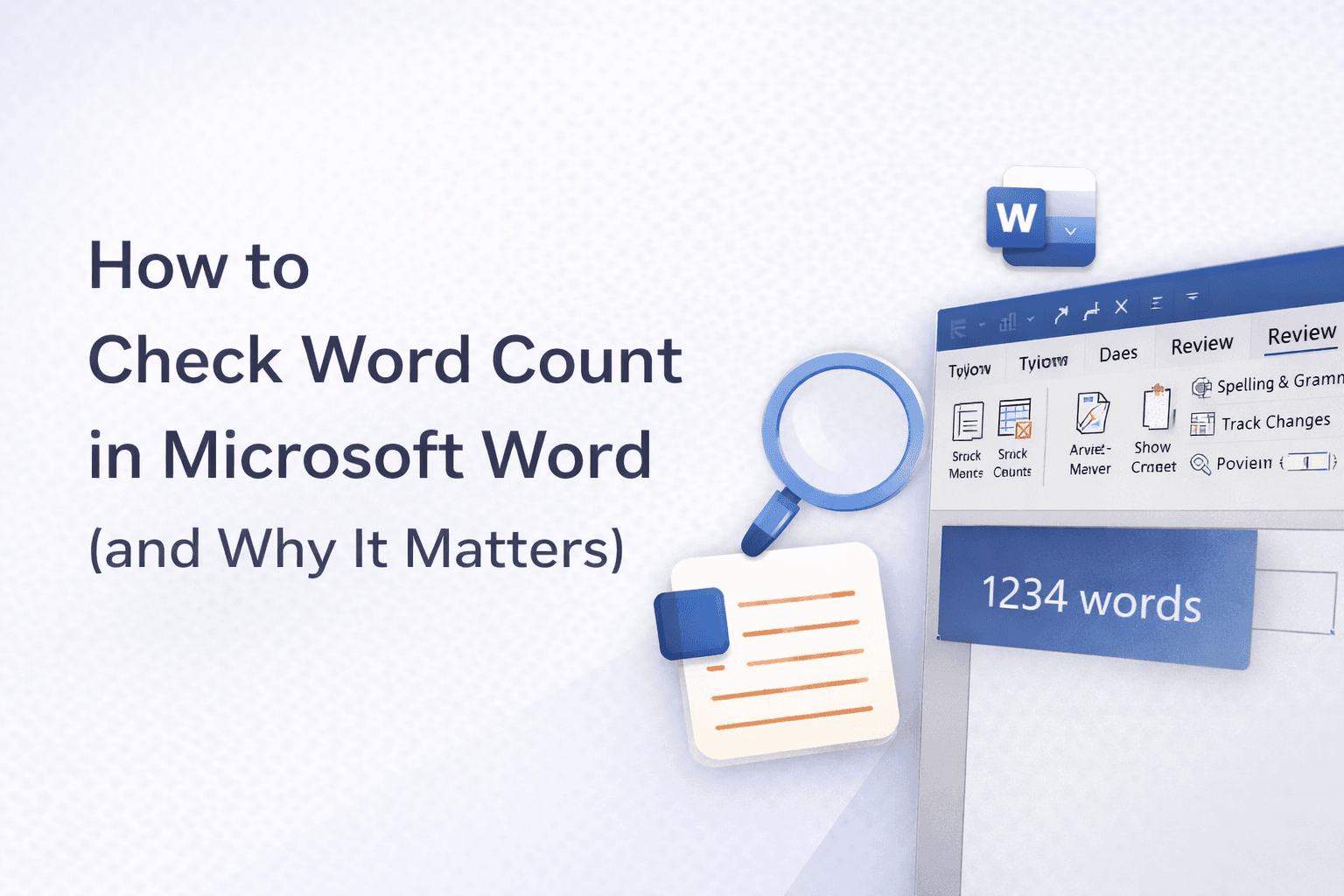
You will see something like “1234 words.” To see more details, click on it. It will show paragraphs, lines, characters, etc.
If you don’t see the word count at the bottom, right-click on the status bar and make sure “Word Count” is checked.
From the “Review” Tab
Click on the “Review” tab at the top of the window.
Select “Word Count.” A window will appear with the number of words, characters, paragraphs, etc.
From the Search Bar
Type “Word Count.”
Click on it to visualize the information.
If you want to count only part of the text, you can do so by highlighting the section you want to count and then using any of the three methods explained above.
Meeting the word count is important — but clarity, structure, and academic tone matter just as much.
At PaperCheck, our expert editors help you refine your writing, eliminate unnecessary repetition, and ensure your paper meets academic standards.
👉 Upload your document today and get professional feedback fast.