How to Proofread on Your Phone Between Classes
How to Proofread on Your Phone Between Classes
Proofreading on your phone isn’t anyone’s dream study activity. The screen is small, notifications are everywhere, and you probably have five minutes before your next class. Still, those little gaps in the day can be enough to catch the mistakes that cost easy marks.
If you’re a busy student, the goal is not to make your essay perfect in one go. It’s to catch the obvious stuff before you turn it in. Here’s how to make mobile proofreading actually useful.
Start with a “quick-fix” pass
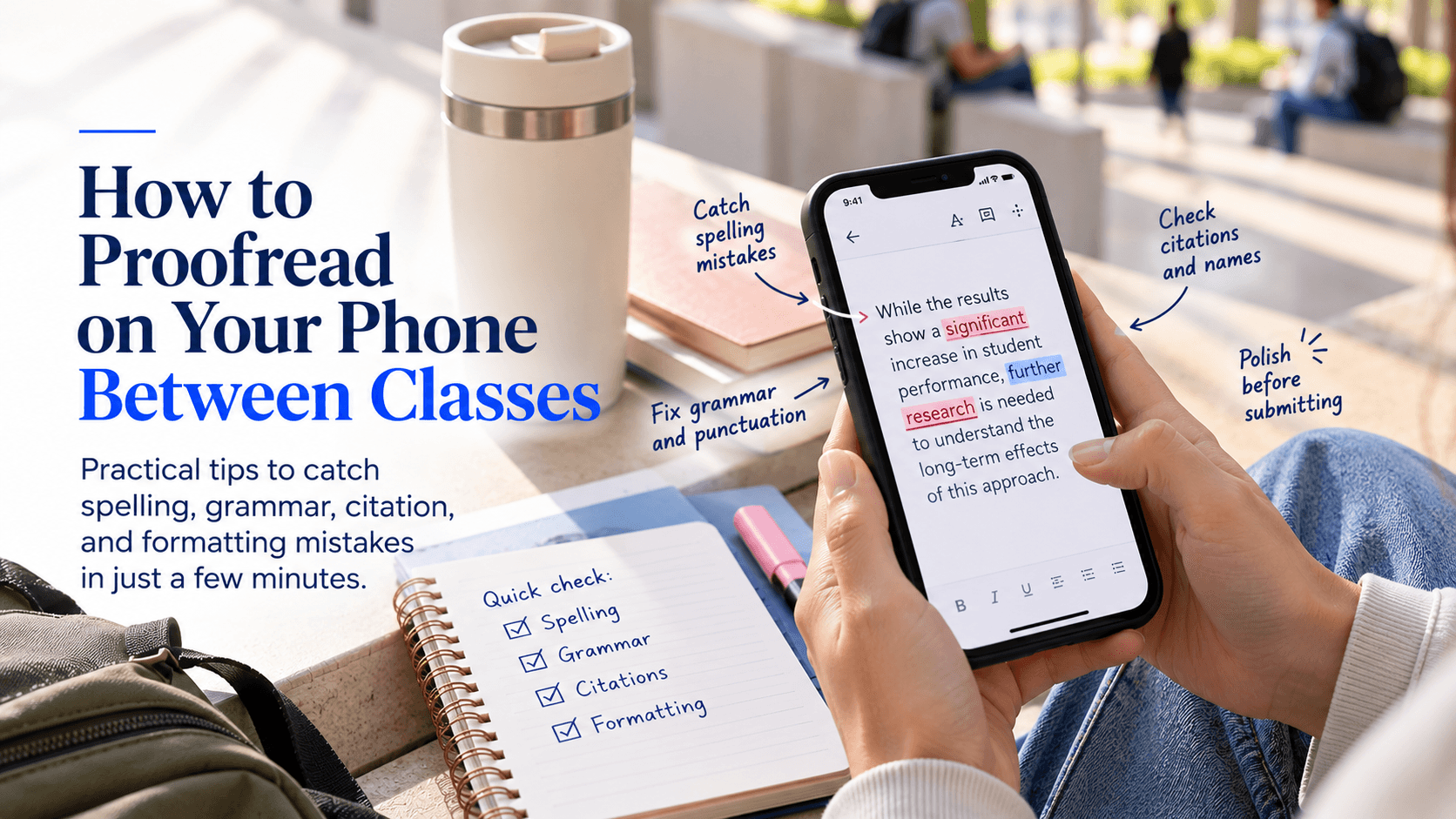
When you only have a few minutes, don’t try to rethink your whole essay. Look for the simple stuff first:
Spelling mistakes and repeated words
Missing punctuation
Weird autocorrect changes
Names, dates, citations, and assignment titles
Sentences that are way too long
Phone screens can make it harder to notice big-picture issues, but they’re great for zooming in on details.
Change the way you view the document
A different view helps your brain spot errors it has begun to ignore. Try one of these:
Increase the font size.
Switch to dark mode or a different background color.
Read one paragraph at a time.
Turn the phone sideways for a wider line length.
Use your document app’s reading or focus mode if it has one.
Even changing the font temporarily can make a familiar draft look new again.
Let your phone read it aloud
Text-to-speech is one of the best proofreading tools students overlook. Hearing your work read aloud makes awkward phrasing, missing words, and repetitive sentences much more obvious.
In Google Docs, Word, and many phone accessibility settings, you can use a read-aloud feature. Put in headphones if you’re on campus and follow along with the text as it plays.
If a sentence sounds clunky when you hear it, it probably needs a rewrite.
Use grammar tools, but don’t trust them blindly
Tools like Grammarly, Microsoft Editor, and Google Docs suggestions can help catch basic errors. They’re especially good for:
Typos
Comma problems
Repeated words
Simple grammar slips
Passive or overly wordy sentences
But they don’t always understand your meaning, your course language, or citation rules. Treat suggestions like advice, not automatic corrections. If a change makes your sentence sound less like you, skip it.
Proofread backward for typos
One of the best tricks is to read your draft backward, sentence by sentence or even word by word. This sounds strange, but it works. It breaks the habit of skimming for meaning and helps spelling mistakes stand out.
Start at the last sentence and read upward. You’ll focus more on the words themselves instead of getting carried along by the argument.
It’s not the best method for checking flow, but it’s great for spotting spelling mistakes and missing punctuation during a short break.
Search for your usual problem words
Most people make the same mistakes again and again. Maybe you mix up “their” and “there,” write “definitely” incorrectly, overuse “really,” or forget to put citations after quotes.
Use the Find feature in your document app to search for words you often misuse. It takes less than a minute and can save you from a predictable error.
Keep a tiny proofreading checklist
Save a note on your phone with a checklist you can use before submitting work:
Is the title correct?
Did I answer the question?
Are names and sources spelled correctly?
Did I cite every quote and borrowed idea?
Are paragraphs easy to read?
Did I run spellcheck?
Did I read it aloud once?
You do not need a perfect checklist, just one you’ll actually use while waiting outside a lecture hall.
A fast between-classes workflow
Open the draft and do one 3–5 minute pass.
Fix only the easy errors first.
Read one section aloud or with text-to-speech.
Do a final scan for names, citations, and formatting.
Stop when you’re done with one focused round instead of endlessly tweaking.
Proofreading on your phone won’t replace a full edit on a laptop, but it is enough to catch many small mistakes before class, office hours, or submission.
Still, those five-minute moments add up. Edit a paragraph on the bus, listen to your introduction while walking to class, or check citations while waiting for coffee. Your phone can turn dead time into a calmer, cleaner final draft.
Need a more thorough final check?
A quick phone pass can catch obvious mistakes, but a full proofreading review can help you submit with more confidence.