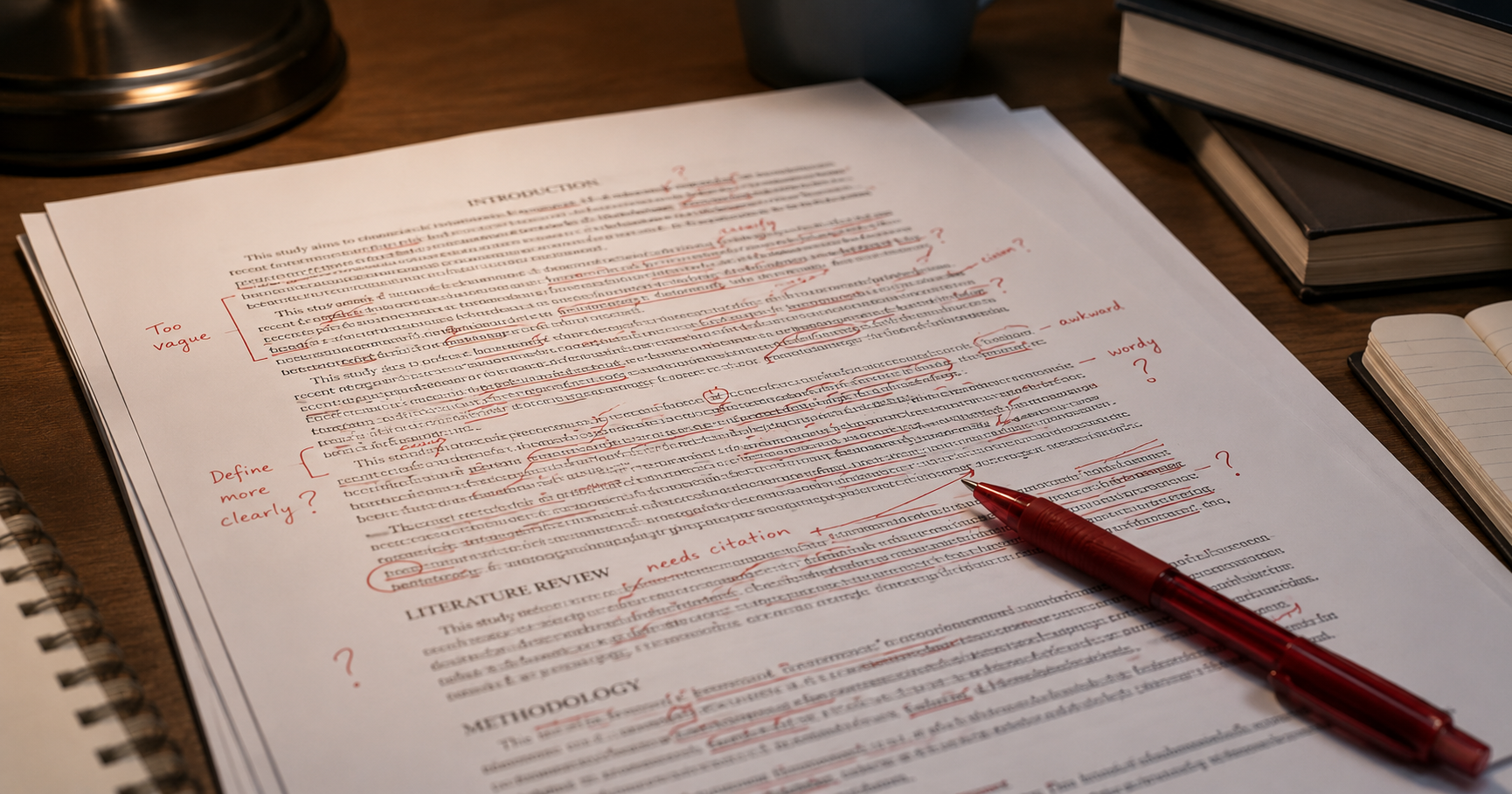

How to Use Track Changes in Word – Easy Step-by-Step Guide (2026)
How to Use Track Changes in Word – Easy Step-by-Step Guide (2026)
Learn how to use Track Changes in Microsoft Word step by step. Edit, comment, and review documents easily for essays, research papers, and collaborative work.
If you’re editing an essay, thesis, or research paper, Track Changes is one of the most useful tools in Microsoft Word.
Why use Track Changes?
Track Changes in Microsoft Word is essential for collaborative editing. It highlights additions, deletions, and formatting changes, allowing authors and reviewers to see each other’s contributions clearly.
Step 1: Enable Track Changes
Open your Word document.
Go to the Review tab in the Ribbon.
Click on Track Changes. The button will appear highlighted when active.
Tip: You can also press Ctrl+Shift+E (Windows) or Command+Shift+E (Mac) to toggle Track Changes on and off.
In Microsoft Word, the Track Changes option is located under the “Review” tab in the top menu.
If you're working on an important document, professional editing can make a big difference. Get expert academic editing service with tracked changes.
Step 2: Make edits with Track Changes enabled
Once Track Changes is active, any insertion, deletion, or formatting change is recorded. Additions are underlined or colored, deletions appear with strikethroughs, and formatting changes are noted in the margin.
Example: Adding the sentence "This study focuses on modern editing tools." will show as underlined in the document.
Deleting "The report was incomplete." will appear with a strikethrough.
When Track Changes is enabled, insertions appear underlined and deletions are shown with strikethrough.
Step 3: Customize Track Changes view
Word offers several ways to view tracked changes:
Simple Markup: Shows clean text with indicators for edits.
All Markup: Displays all edits inline with balloons for comments.
No Markup: Hides changes for a clean view without accepting or rejecting them.
Original: Shows the document as it was before edits.
You can access these options under the Review → Tracking → Display for Review dropdown.
Step 4: Adding comments
Comments allow you to provide feedback without altering the text:
Select the text you want to comment on.
Click New Comment in the Review tab.
Type your feedback in the comment box that appears in the margin.
Comments appear in the margin and allow reviewers to provide feedback without modifying the original text.
Step 5: Review and accept or reject changes
After edits are complete, you can review each change:
Go to the Review tab.
Click Next to jump to the next tracked change.
Use Accept or Reject to finalize or discard the edit.
Tip: You can also accept/reject all changes at once by using the dropdown arrow under Accept/Reject.
You can accept or reject each change individually using the options in the Review tab.
Many students and researchers use Track Changes, but reviewing every edit can be time-consuming and overwhelming.
That’s where professional editing makes a difference.
Want expert-reviewed documents with tracked changes included? Get a quote now.
Step 6: Finalizing the document
Once all changes are reviewed:
Turn off Track Changes.
Save the document with a new filename to preserve a copy with edits if needed.
Ensure all comments are resolved or deleted.
Before: Draft with multiple tracked changes and comments.
After: Final version with all changes accepted and comments resolved.
Extra tips for collaborative editing
Use different reviewer colors to distinguish edits by multiple authors.
Regularly save versions to avoid losing track of changes.
Encourage reviewers to add comments rather than rewriting sections entirely.
Combine Track Changes with Compare & Merge for multiple drafts.
Track Changes in Microsoft Word simplifies collaborative editing and ensures transparency. Follow this step-by-step guide to enable, review, and finalize edits efficiently.
Ready to submit a polished, error-free document? Get expert editing with tracked changes and improve your results today.