Understanding Comments in Word 2007
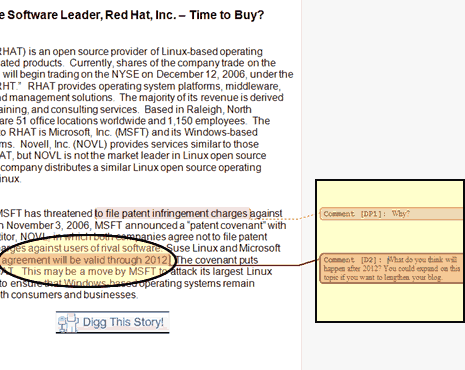
Comments are a useful feature in Microsoft Word 2007 that allow users to provide feedback or suggestions on documents. However, when finalizing a document, especially in academic or business settings, it may be necessary to remove these comments to present a clean version. In this article, we will explore the step-by-step process of removing comments in Word 2007, along with practical tips to enhance your document preparation.
Why Remove Comments?
There are several reasons why you might want to remove comments from your Word documents:
- Professional Appearance: A document free of comments looks more polished and professional.
- Confidentiality: Comments may contain sensitive feedback that should not be shared with the final audience.
- Clarity: Removing comments can help ensure that the document is easy to read and understand.
Steps to Remove Comments in Word 2007
Step 1: Open Your Document
To get started, open the Word 2007 document that contains comments you wish to remove. This can be done by double-clicking the file or opening Word and selecting the file through the 'Open' option.
Step 2: Access the Review Tab
At the top of the Word window, locate the Review tab. Click on it to access various document review features, including comments management.
Step 3: Navigate to Comments
In the Review tab, you will find a section dedicated to comments. Here, you can view all the comments made in the document. You can navigate through them using the Next and Previous buttons.
Step 4: Remove Individual Comments
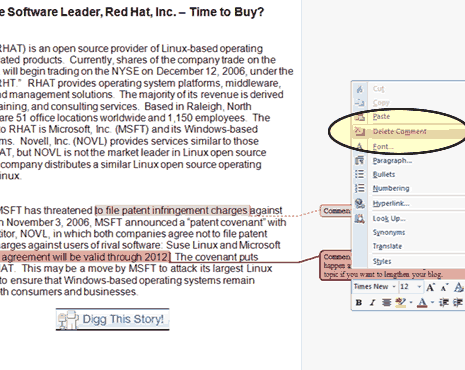
If you want to remove comments one at a time, click on the comment you wish to delete. Once selected, look for the Delete button in the Comments section of the Review tab, and click it.
Step 5: Remove All Comments
To remove all comments at once, click on the drop-down arrow next to the Delete button. From the options provided, select Delete All Comments in Document. This will clear all feedback in one go.
Additional Tips for Document Preparation
Here are some additional tips to ensure your documents are well-prepared for submission:
- Proofread Thoroughly: Always proofread your document after removing comments to catch any overlooked errors.
- Use Track Changes: If collaborating with others, consider using the Track Changes feature instead of comments for clearer editing.
- Format Properly: Ensure your document follows any specified formatting guidelines for your academic or business context.
Conclusion
Removing comments in Word 2007 is a straightforward process that can greatly enhance the professionalism of your document. By following the steps outlined above, you can ensure your final version is clean and ready for presentation.
For those looking to take their document preparation to the next level, consider utilizing professional editing services. At PaperCheck, we offer expert editing and proofreading to help you polish your documents. Enjoy a 15% discount on your first document when you choose our services!
Contact us today to get started on enhancing your writing!